Watch this quick video guide to configure your PC settings and avoid common injection errors. Once completed, scroll down to follow the step-by-step installation instructions
Video Guide:
STEP 1
Download and Extract
Download: Download the Arc Raiders Hyperion loader using the provided download link.
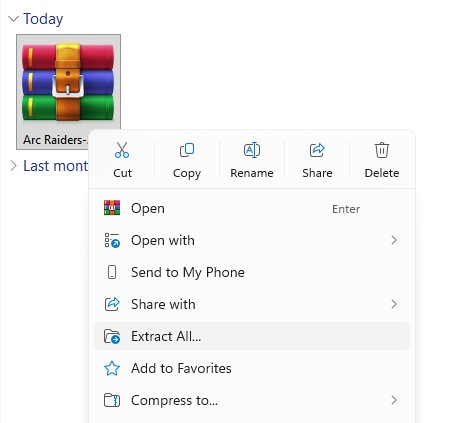
Extract Files: Locate the downloaded ZIP/WinRAR file, right-click it, and select "Extract All" to extract its contents into a new folder.
STEP 2
Run Loader & Log In
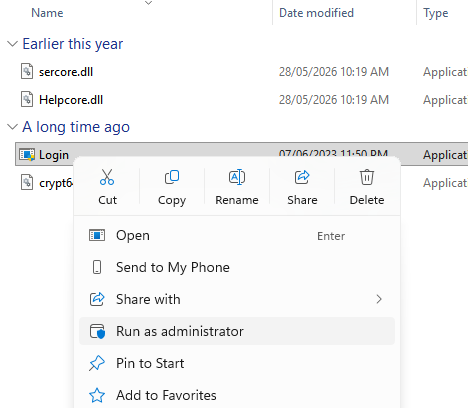
Run as Administrator: Open the new folder, locate the loader application, right-click it, and select Run as administrator.
Note: If this is your very first time, a green progress bar will appear. Wait for it to complete its loading process, then locate the newly generated loader application that appears in the folder, right-click it, and select Run as administrator.
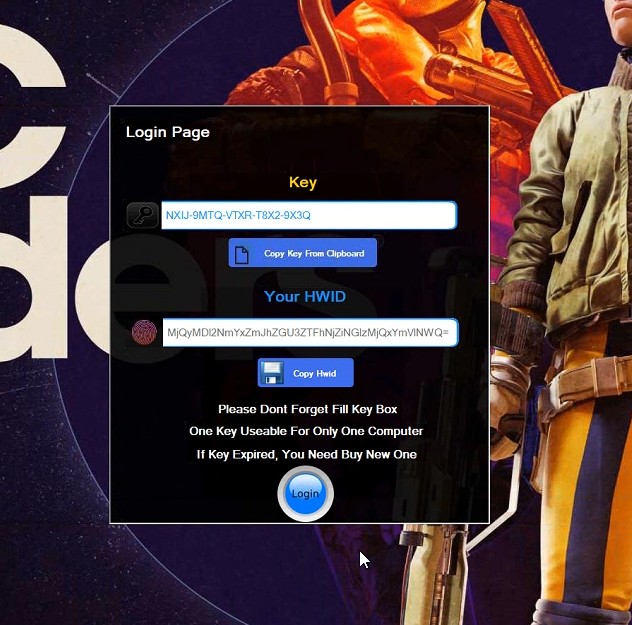
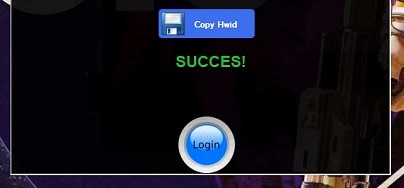
Log In: Paste your unique serial key into the key field and click Login. Once authenticated, a confirmation message will display "Success".
STEP 3
Start the Injection Process
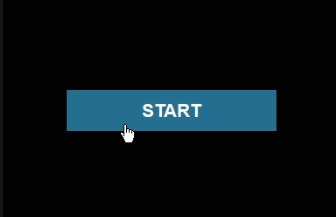
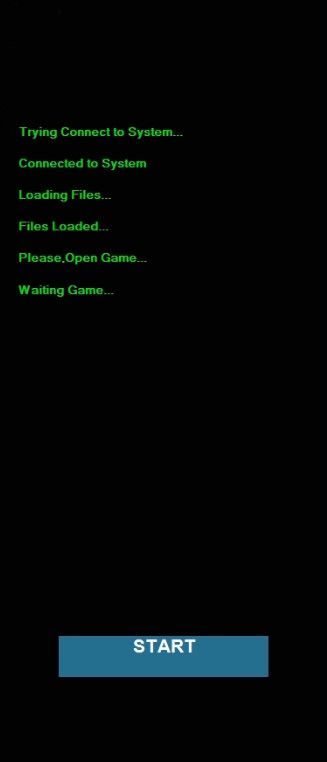
Initialize Setup: A new window will appear on the right side of your screen. Click the START button to begin the injection process and start connecting to system and loading files.
Prepare for Launch: The injection will begin. Wait until the loader status message updates to "waiting for game..." before opening the game.
⚠️ Troubleshooting: If the loader fails to load files and displays ERROR Code: 0x1412, close the loader completely, watch the video located at the top of this page, follow all the steps shown, then restart your PC and try again.
STEP 4
Launch Game & Display Mode Verification
Launch Game: Open your game launcher and start Arc Raiders.
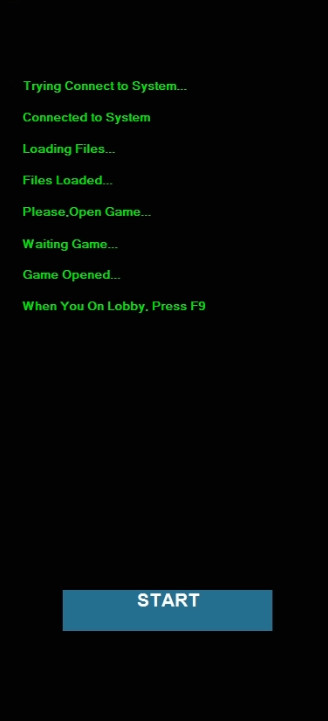
Game Process Sync: Once the game launches, the loader will automatically detect it and display: "when you on lobby press F9".
⚠️ Important: Before pressing F9, ensure the game is set to Windowed or Borderless mode to work properly.
STEP 5
Finalize Injection & Menu
Trigger Injection: Press F9 while sitting in the game lobby.
Confirmation Message: Upon pressing F9, the loader will start to connect to the game then start creating the menu.
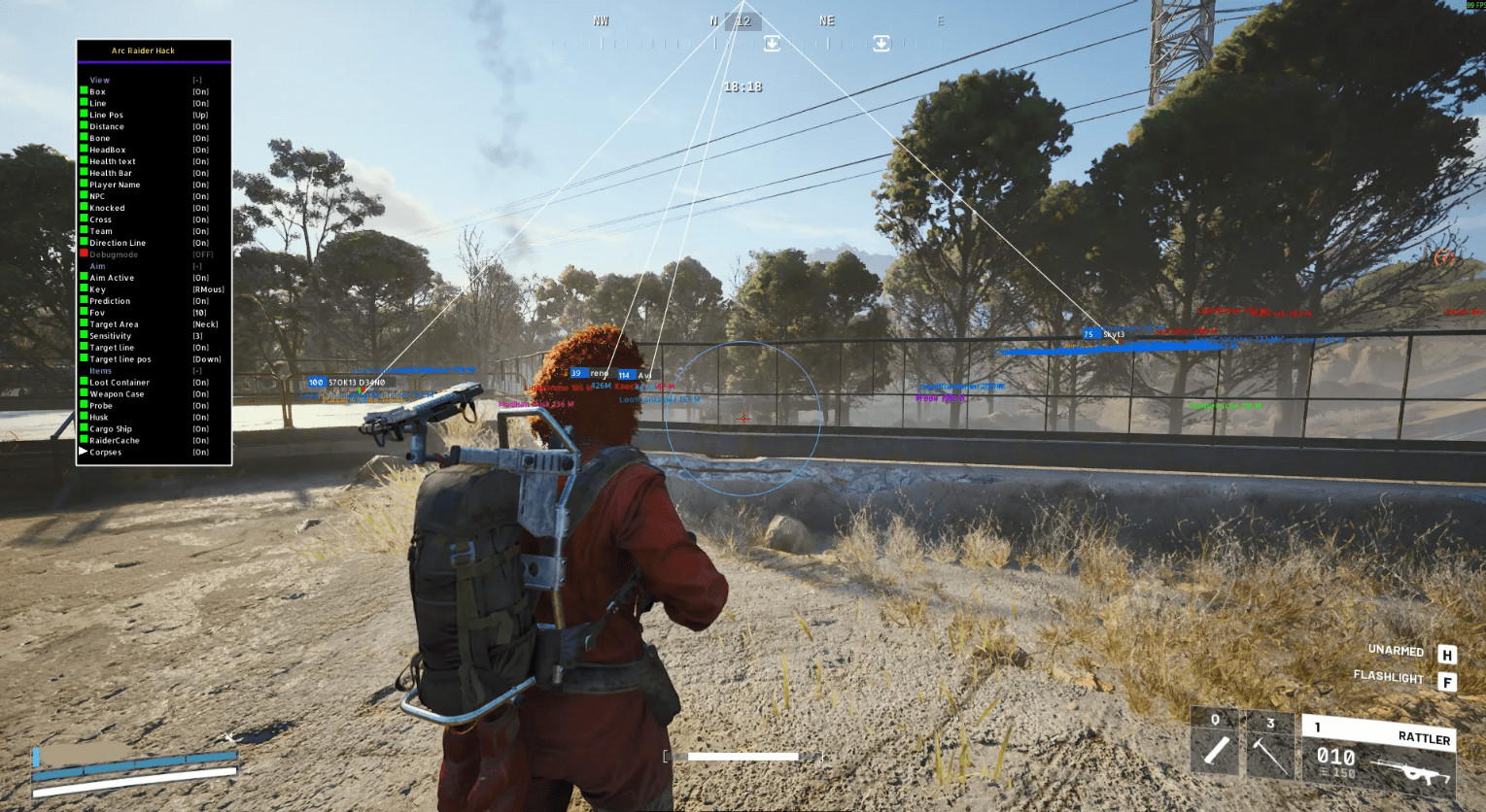
Access Menu: The menu overlay will now appear at the top-left of the screen.
Menu Controls: Use the following hotkeys to operate the menu:
Show / Hide Menu: Press the Home key. Navigate & Select: Use the Arrow keys to move through the options and Enable or Disable them.
Frequently Asked Questions
Why I can't play the game in Fullscreen mode?
Hyperion operates as an external application, which requires the game to be run in Borderless or Windowed mode to function properly.
What game resolution should I use?
Please set your in-game display settings to Borderless mode and your screen resolution to 1920×1080 before proceeding.
Having trouble downloading, loading, or running the loader? How do I fix it?
This means your internet connection is unable to reach our authentication server. You can easily resolve this by using a VPN or Cloudflare WARP 1.1.1.1, then try again. (Cloudflare WARP 1.1.1.1 is recommended)
Having an error or experiencing trouble using the cheat? How do I fix it?
Most issues can be fixed by following the video and initial setup steps above. If you're still having trouble, feel free to contact us using the live chat button at the bottom right of your screen.