Watch this quick video guide to configure your PC settings and avoid common injection errors. Once completed, scroll down to follow the step-by-step installation instructions
Video Guide:
Initial Setup!
Required System Setup
Disable Secure Boot: Turn off Secure Boot in your PC's BIOS settings before launching.
Disable Overlays: Close all background applications with overlay features (e.g., Discord, NVIDIA, Steam).
Build & Loader Rules
⚠️ One-Time Builds: A unique file is generated every time you authorize your key. There is no permanent loader app.
3-Minute Expiry: Generated builds expire after 3 minutes. You must download and run it immediately.
Single Use Only: Every build works for one launch only. To reinject, you must download a fresh file.
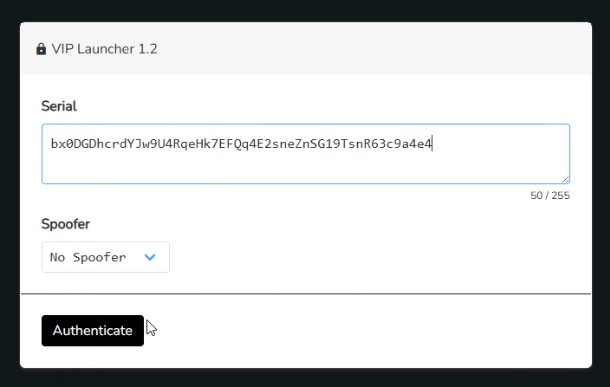
Use "No Spoofer": Always choose "No Spoofer" before authenticating. Spoofer usage is unnecessary for FC games and causes system conflicts.
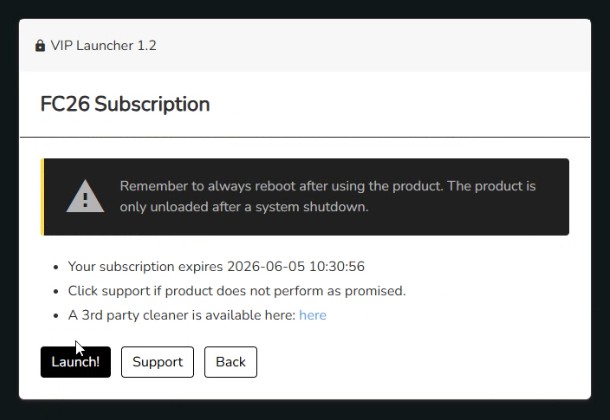
Reboot PC After Use: The software only unloads upon a full system shutdown. Always restart your computer when finished.
STEP 1
Donwload and Authenticate
Access the Loader: Open the VIP Launcher webpage. Paste your license key into the Serial field. Select No Spoofer from the drop-down menu and click Authenticate.
Download the Executable: Click the Launch! button on the subscription confirmation window, choose your destination folder, and save the generated .exe file.
STEP 2
Run & Initialize the Software
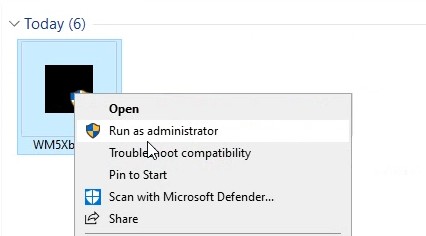
Run as Admin: Locate the downloaded application file in your downloads folder, right-click it, and select Run as administrator.
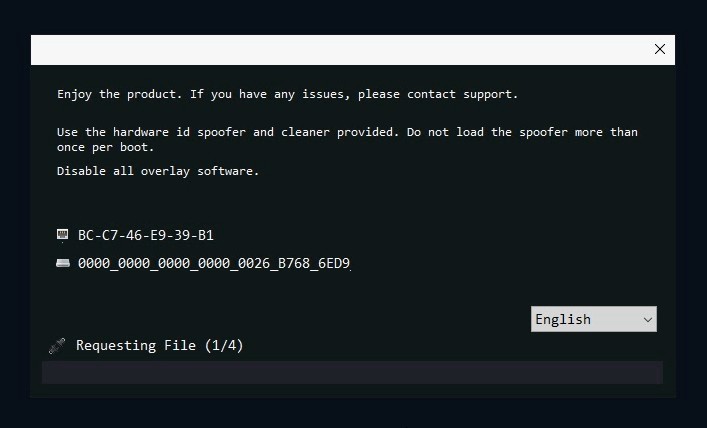
Automatic Setup: The loader will open a console window and immediately start downloading files and preparing the injection process.
STEP 3
Complete the Version Check
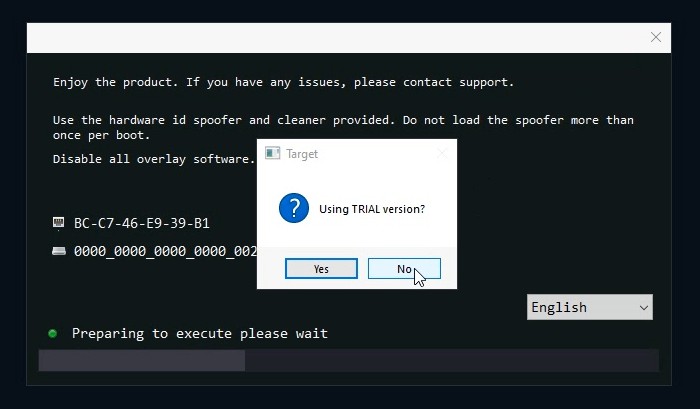
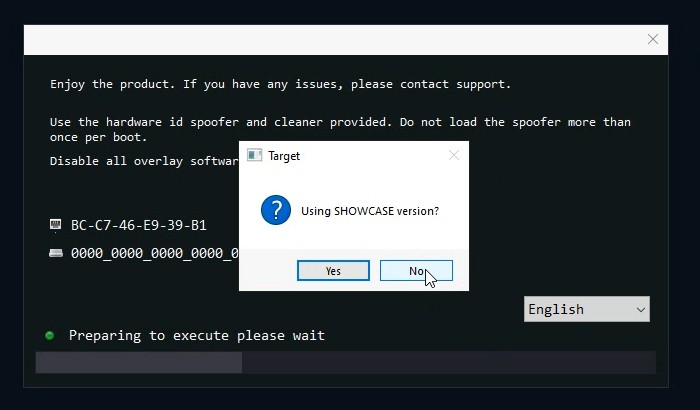
Version Check Prompt: Once the console says "preparing to execute, please wait!", two small windows will appear asking "Using trial version?" then "Using Showcase version?".
Select Your Version: You must answer these correctly for the menu overlay to work:
Select NO if you purchased the full game.
Select YES if you are playing on a trial account.
STEP 4
Setup Complete
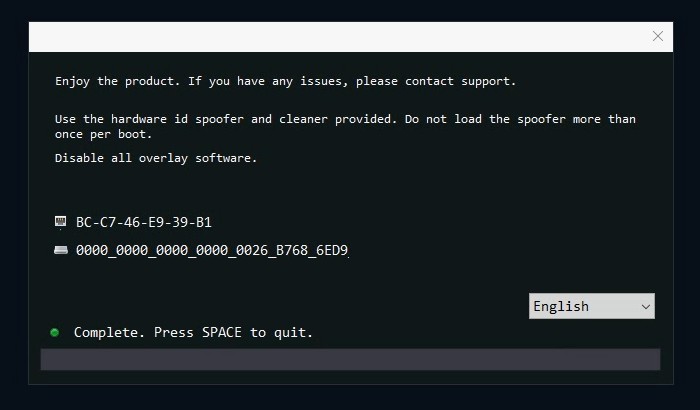
Close the Loader: Wait for the console to display "Complete. Press SPACE to quit.", then press the SPACE key on your keyboard to close the window.
STEP 5
Launch Game
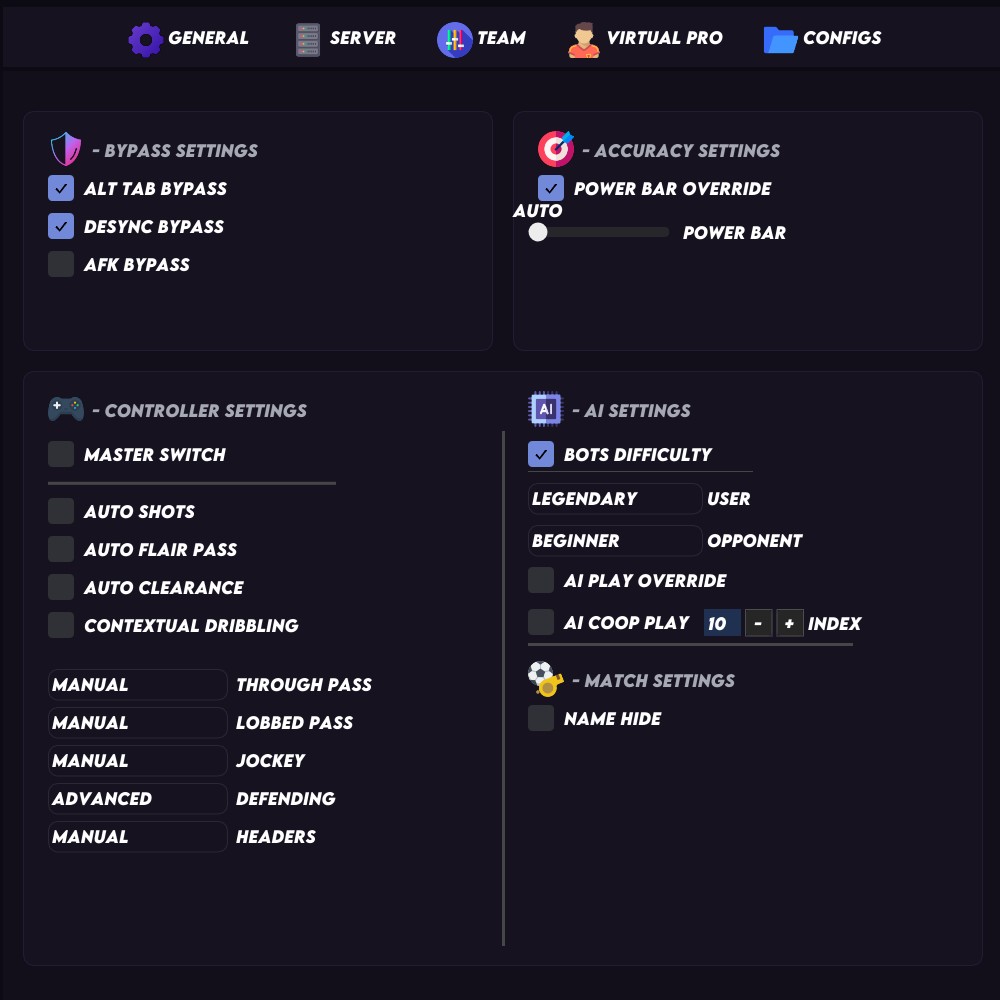
Launch the Game: Immediately open your game platform (e.g., Steam, EA App) and launch the game. The menu overlay will automatically load once you reach the main lobby.
- Use "Home" button on your keyboard to show & hide the menu. - Click with your mouse to enable & Disable the options. - the game have to be in windowed or borderless mode.
💡 Tip: If the menu does not appear while you are in the main game lobby, navigate to the Ultimate Team screen and press the Menu key to open it.
Frequently Asked Questions
Is this cheat easy to use?
This cheat is incredibly simple to run. If you encounter any issues, please check the tutorial video at the top of this page and follow the step-by-step instructions to ensue a smooth setup.
What game resolution should I use?
For this build, please run your game in Windowed or Bordelress mode at a 1920x1080 resolution.
I get an error: " something went wrong, Please show support this error?
This means your internet connection is unable to reach our authentication server. You can easily resolve this by using a VPN or Cloudflare WARP 1.1.1.1, then try again. (Cloudflare WARP 1.1.1.1 is recommended)
Having an error or experiencing trouble using the cheat? How do I fix it?
Most issues can be fixed by following the video and initial setup steps above. If you're still having trouble, feel free to contact us using the live chat button at the bottom right of your screen.